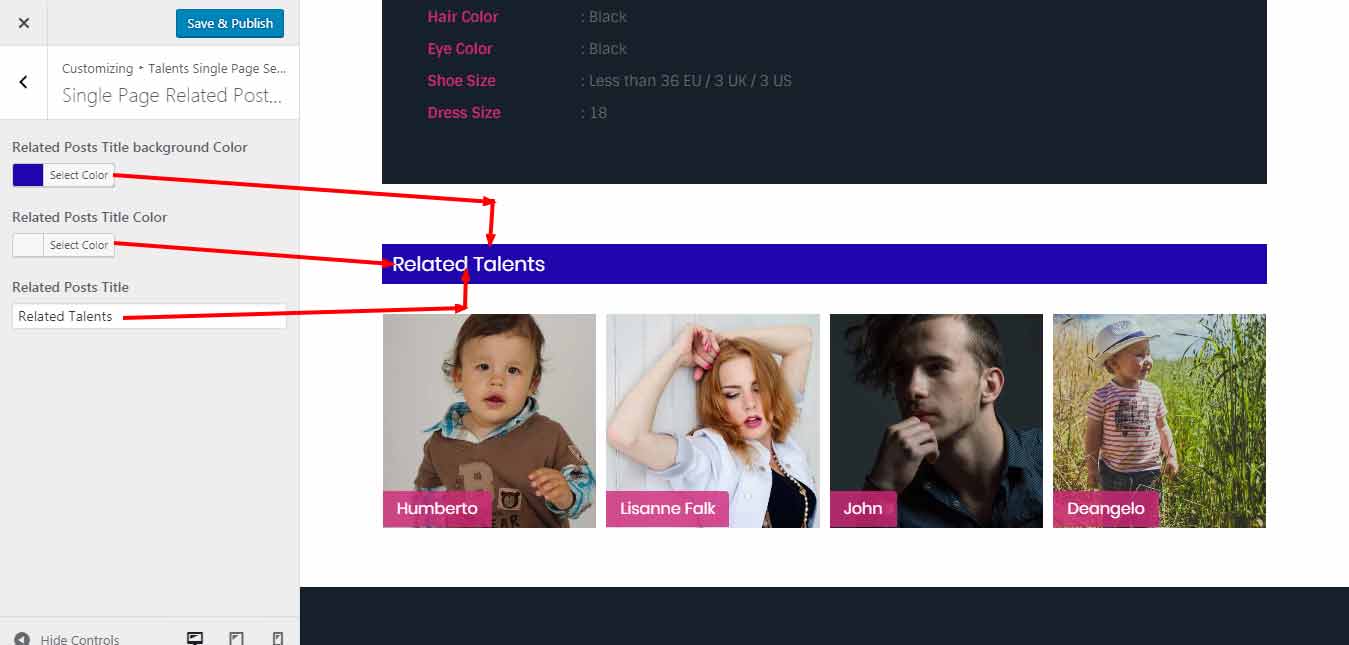
Adding page color settings menu color, Header colors, Foter color and columns settings using Theme Customizer
- navigate to Appearance
- Click On Customize
Header Settings
Goto > Appearance > customize > Header Section
- After Open Customiz Click on “Header Section”
- In Header Section it display Three section
- 1. Top Header Settings
- 2. Header Settings
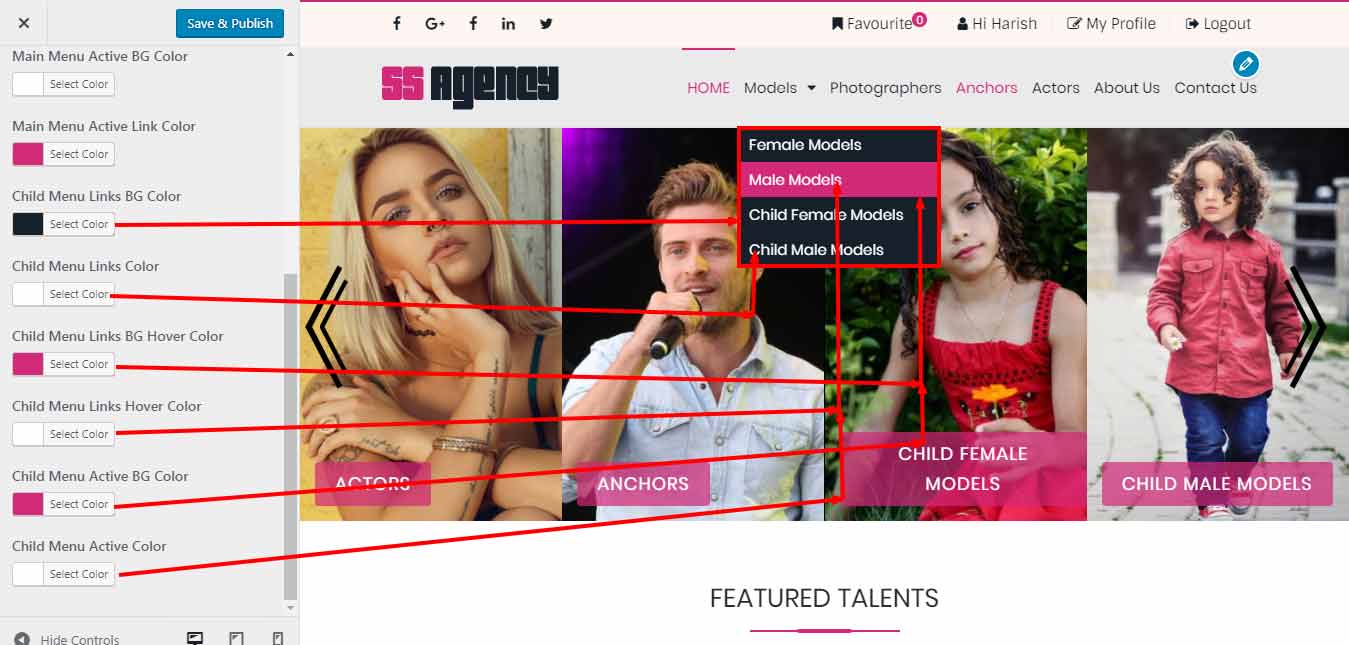
- 3. Menu Settings
1. Top Header Settings
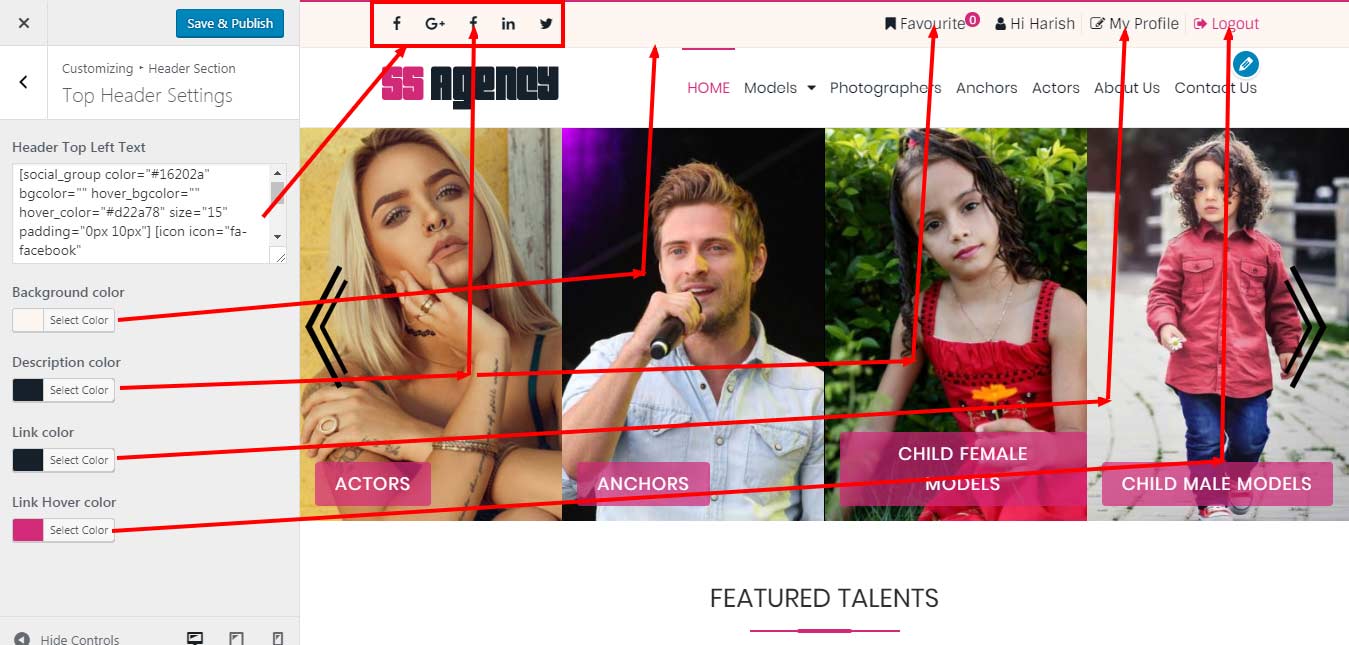
2. Header Settings

3. Menu Settings

Page Section
Goto > Appearance > customize > Page Section
- In Page Section it display Three section
- 1. Page Titlebar
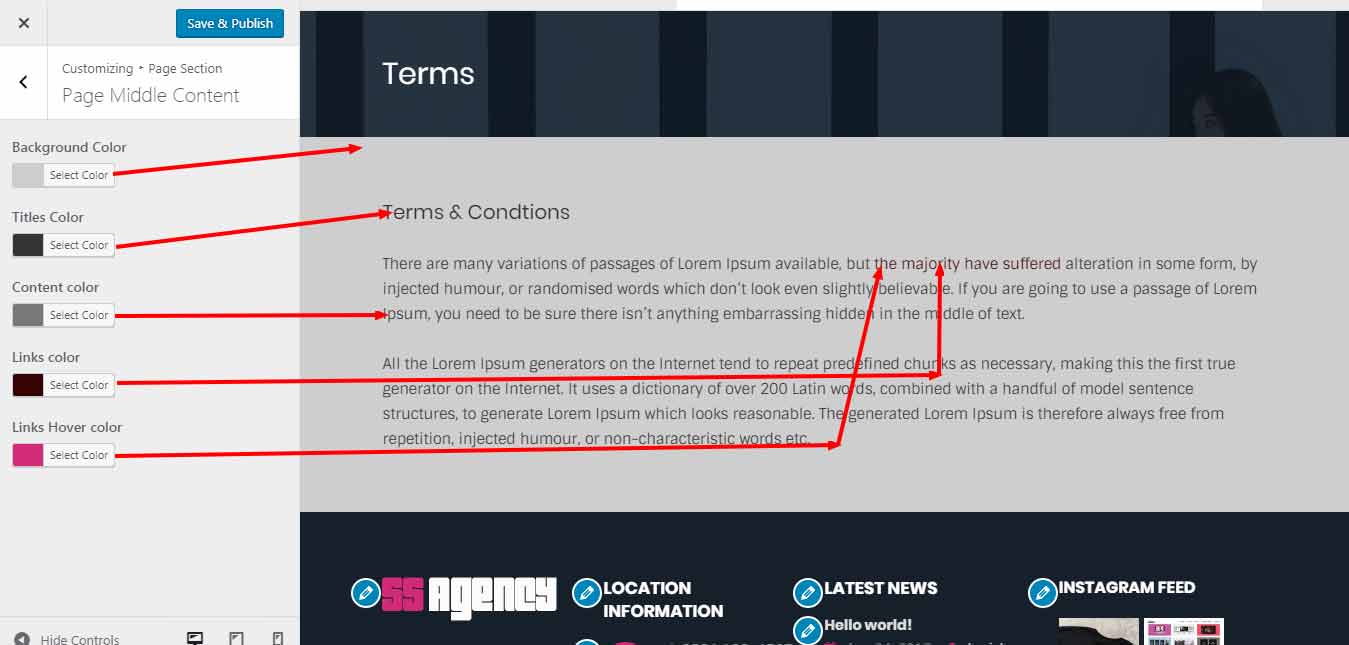
- 2. Page Middle Content
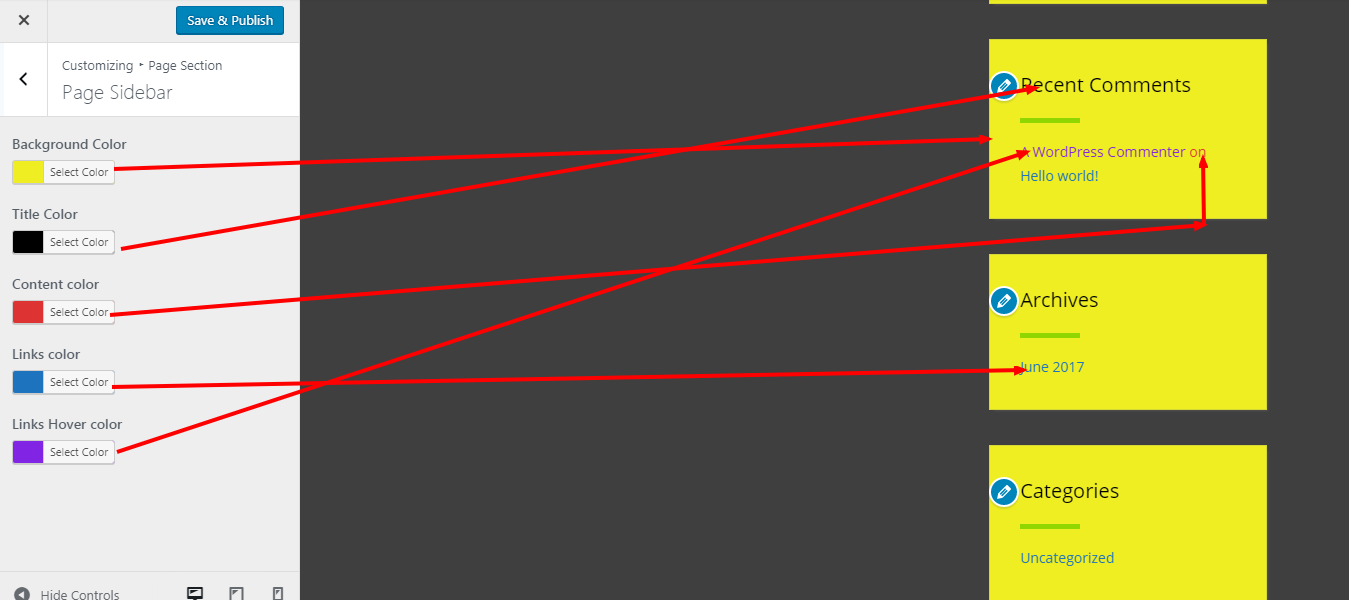
- 3. Page Sidebar
1. Page Titlebar
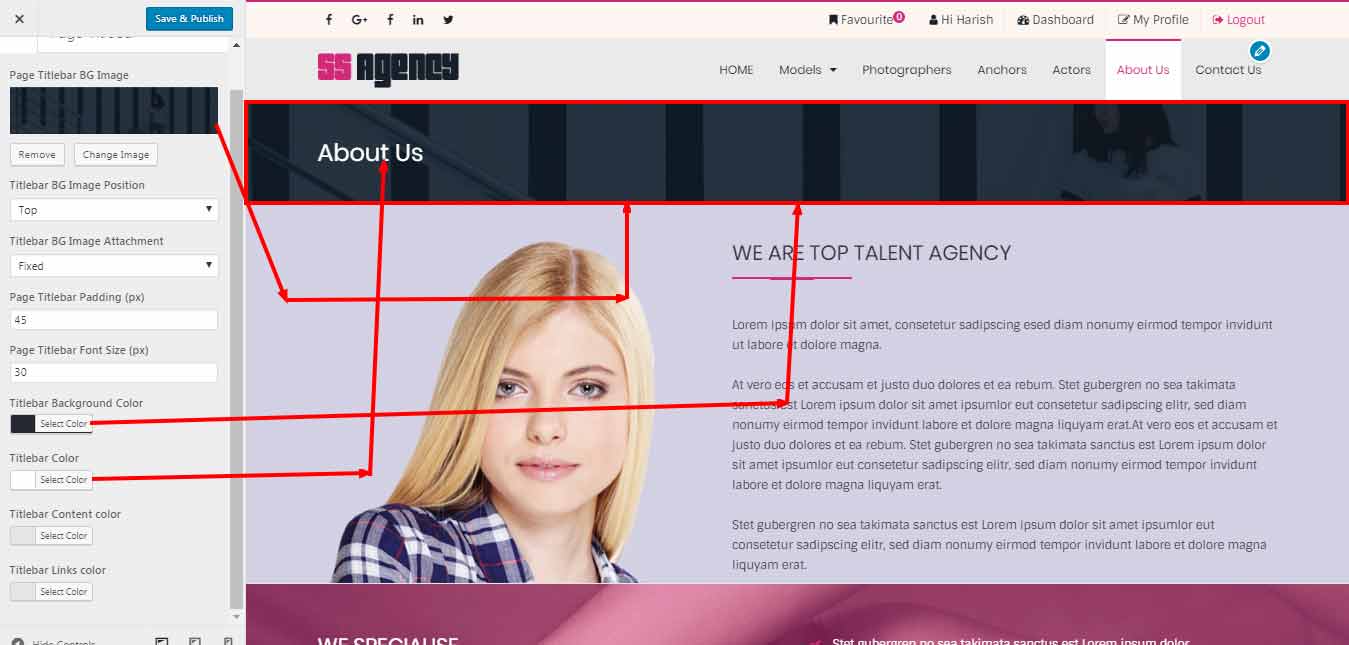
2. Page Middle Content
Footer Settings
- In Footer Section it display Two section
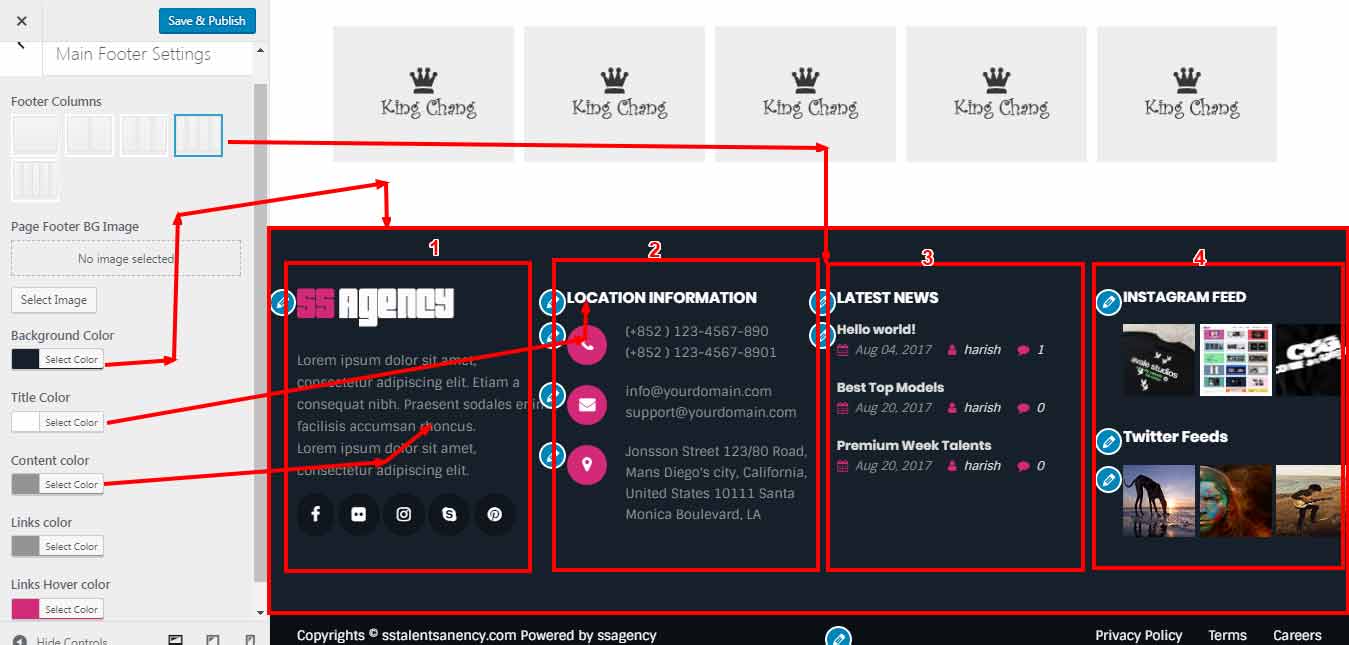
- 1. Main Footer(top) Settings
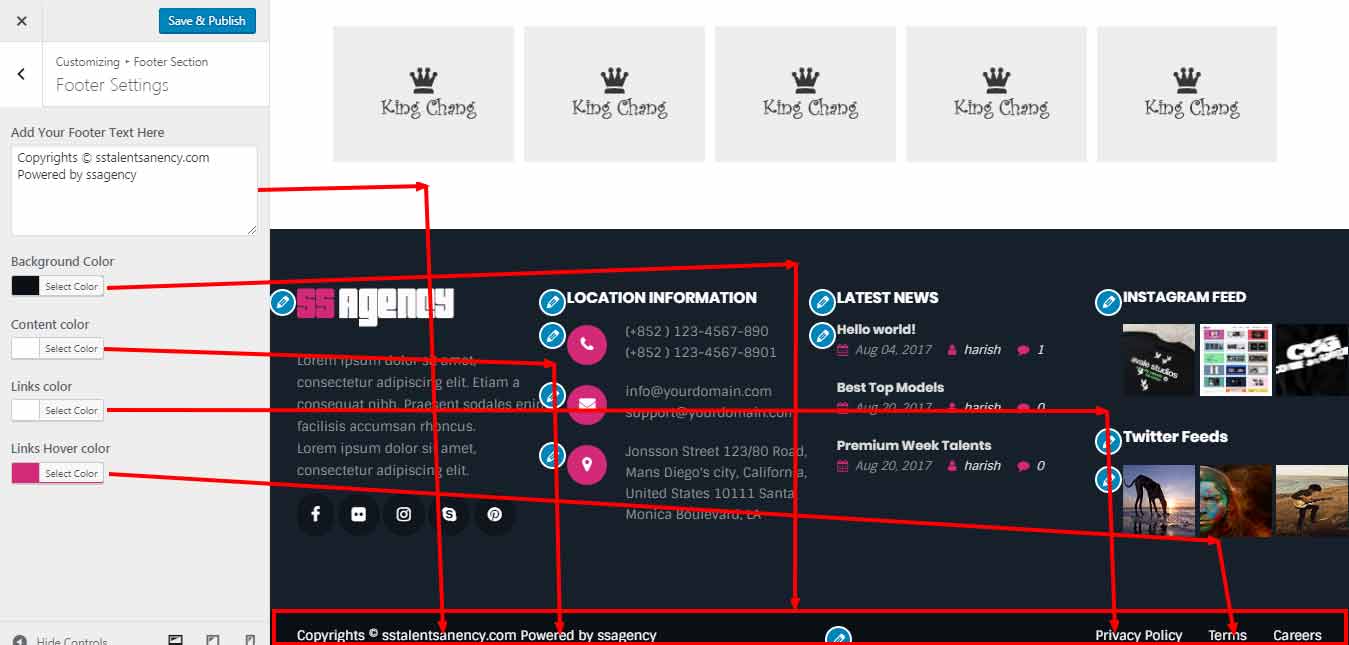
- 2. Bottom Footer
Goto > Appearance > customize > Footer Section
1. Main Footer Setting
2. Bottom Footer Settings
Talent Single Page Settings
- Talent Single Page Colors
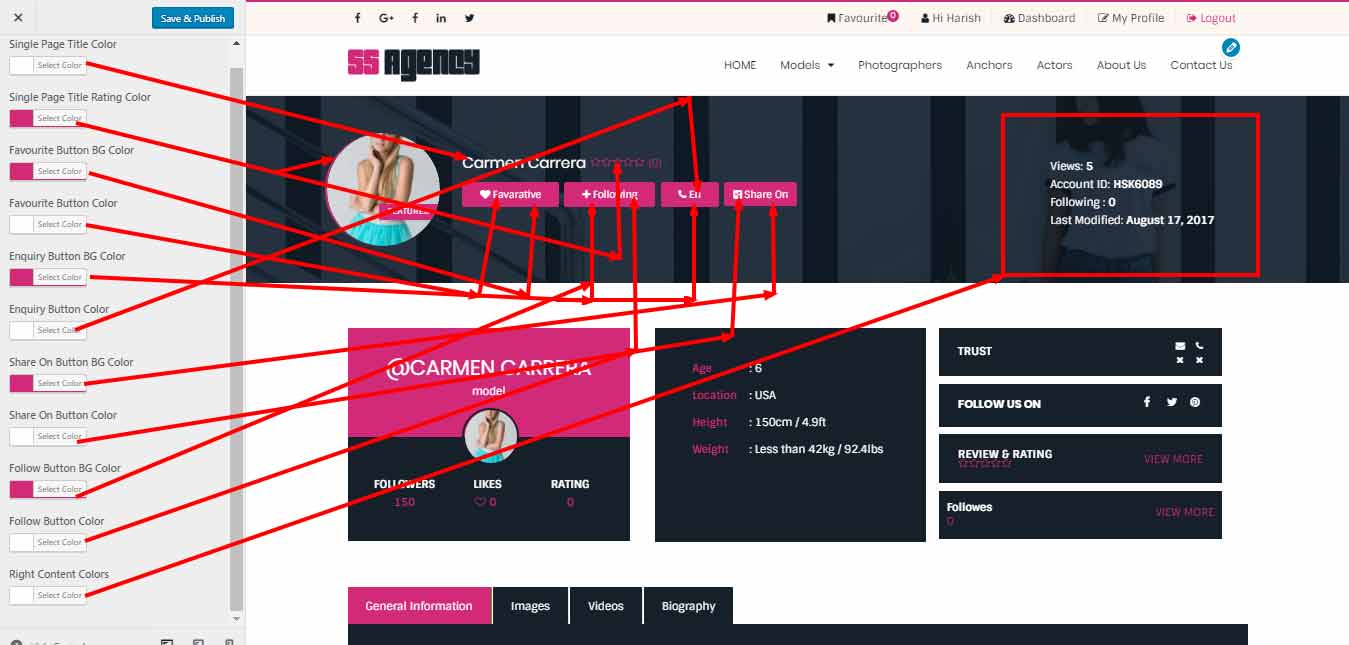
- 1. Talent Single Page Titlebar Settings
- 2. Top Blocks Colors
- 3. Tabs Colors
- 4. Talents Related Posts Settings
Goto > Appearance > customize > Talents Single Page Settings
1.Talent Single Page Titlebar Settings
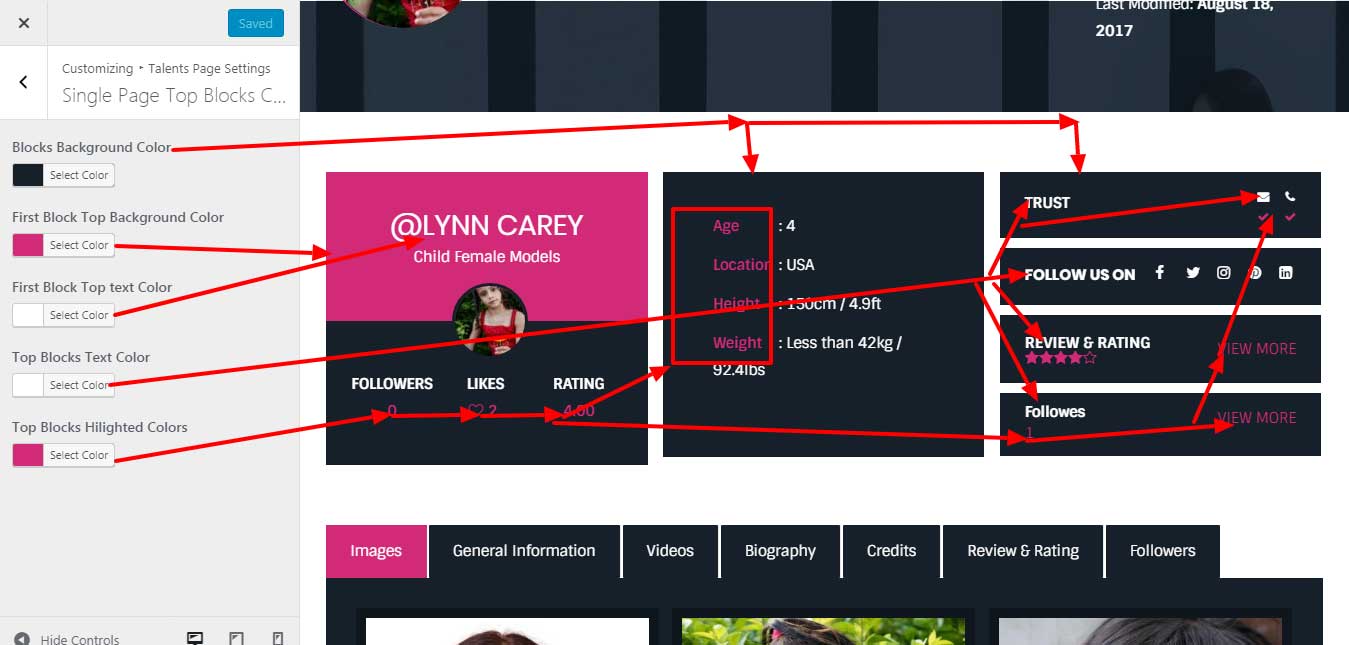
3.Tabs Colors
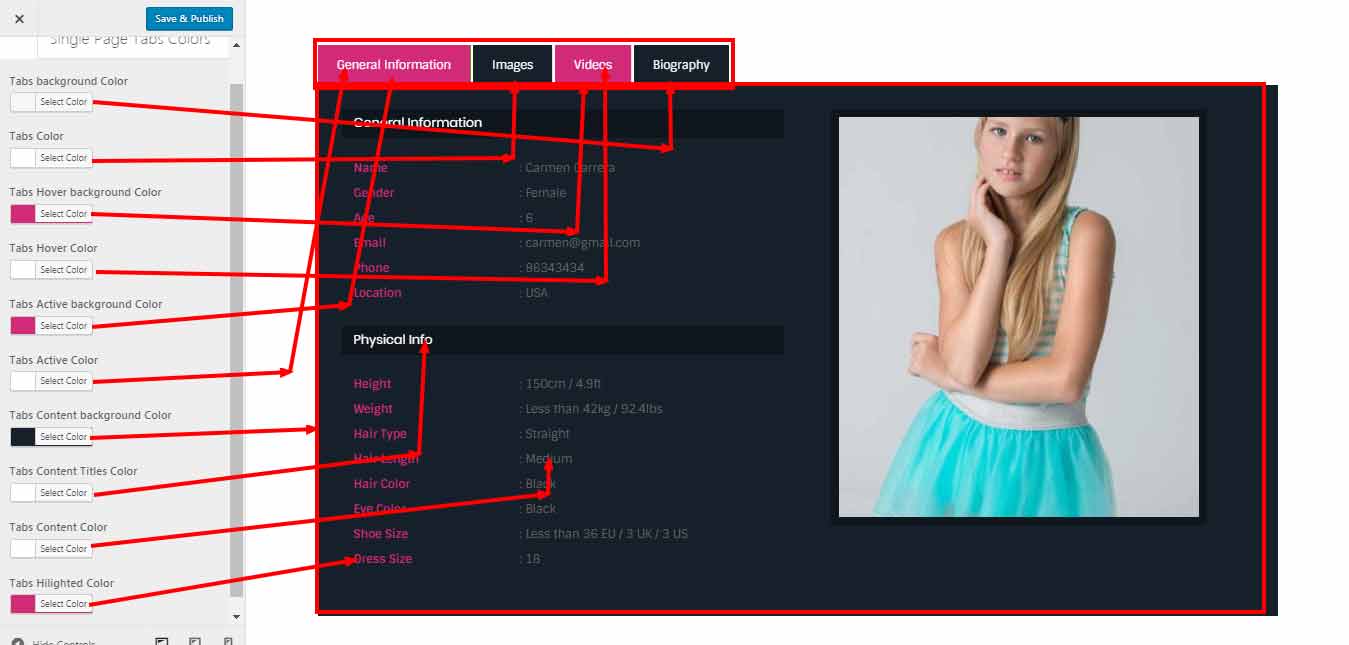
4.Talents Related Posts Settings